01
Open the event customization view
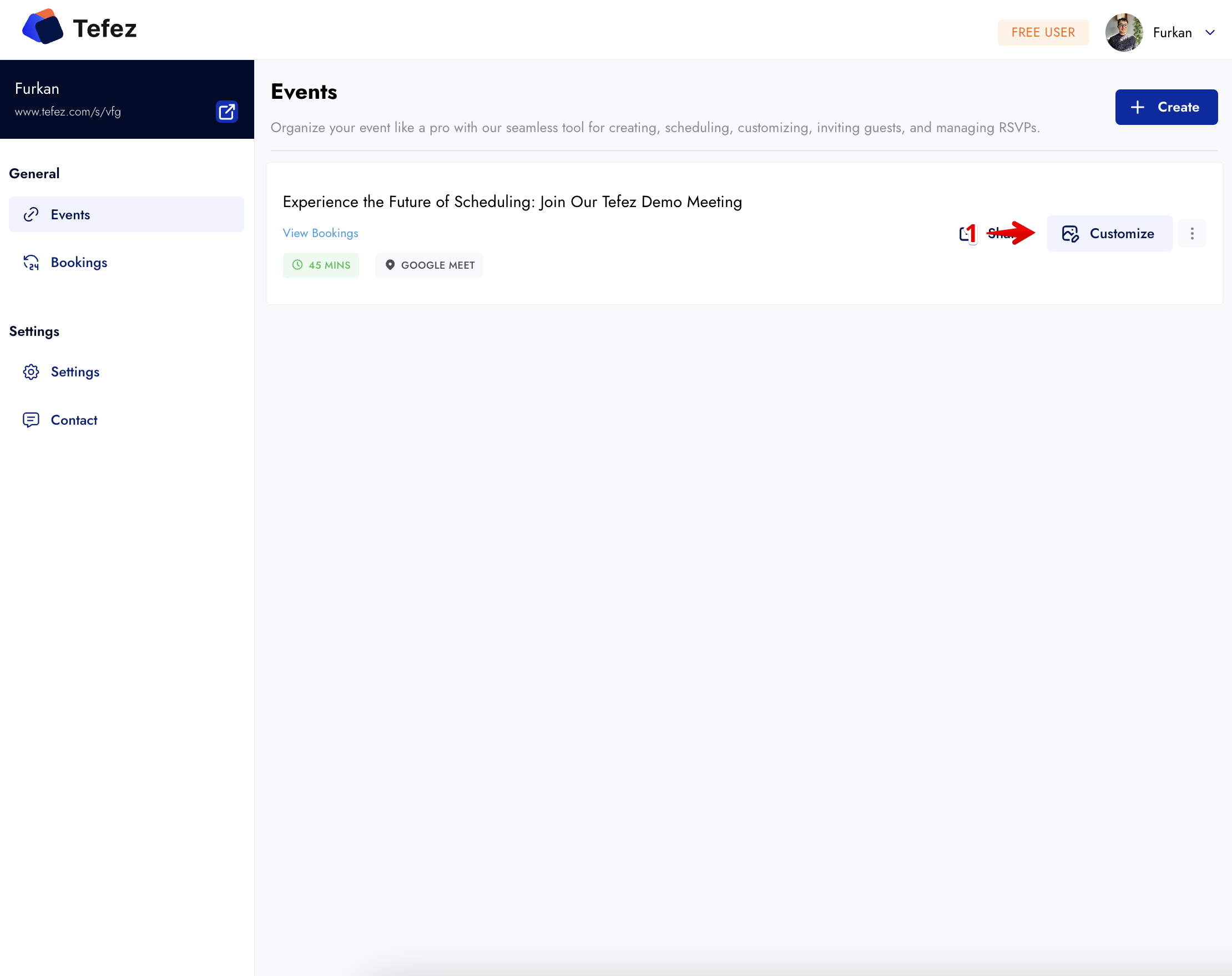
From your event, open the public booking page and select Customize. The preview remains visible while the editing drawer opens.
Booking page design guide
Change the public event page without changing its appointment details or availability.
Before you start
Create the event first. A theme changes the appearance of the public booking page; it does not change the event duration, form, or availability.
From your event, open the public booking page and select Customize. The preview remains visible while the editing drawer opens.
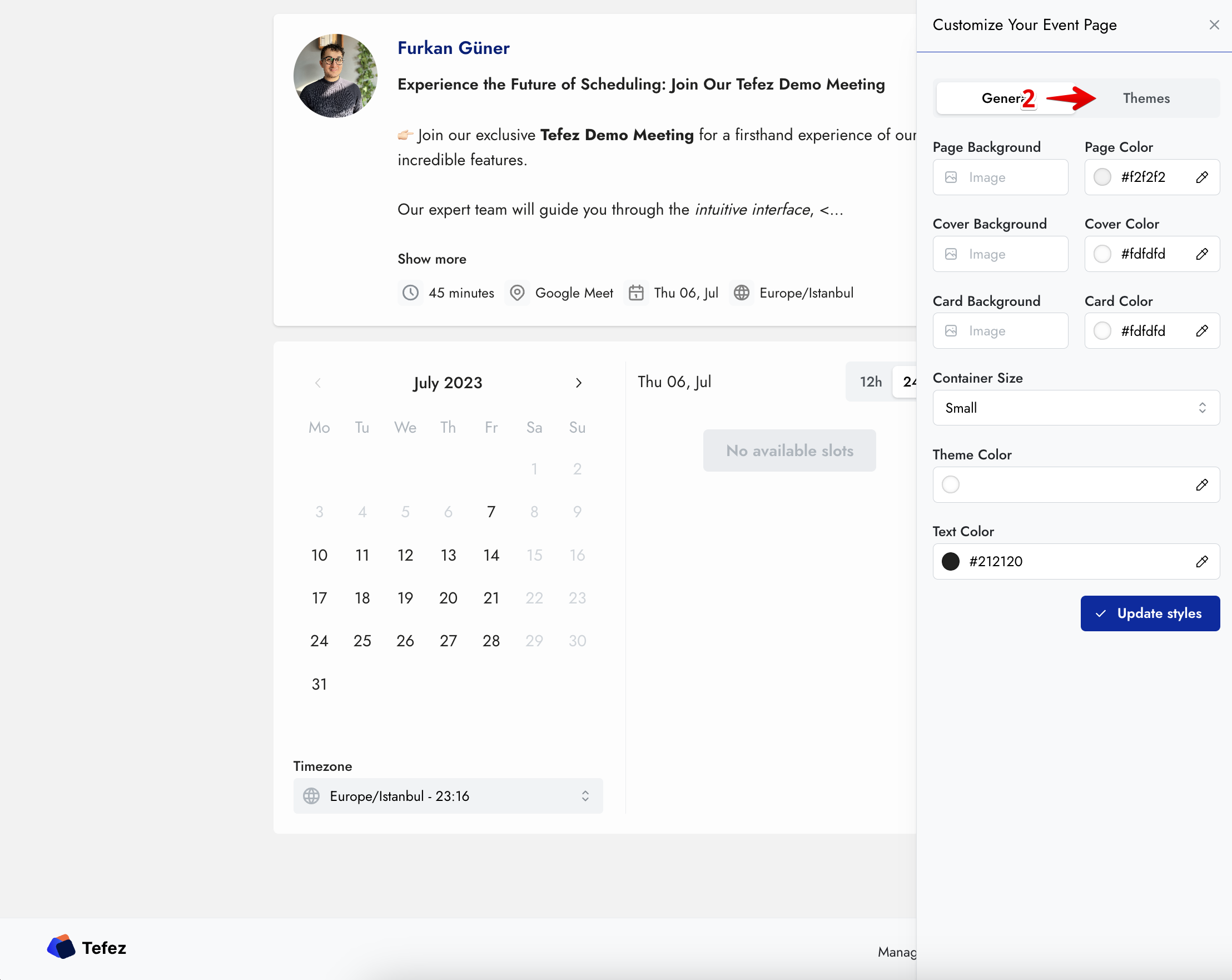
In the customization drawer, select Themes. Use General instead when you want to adjust individual colors, backgrounds, or container size.
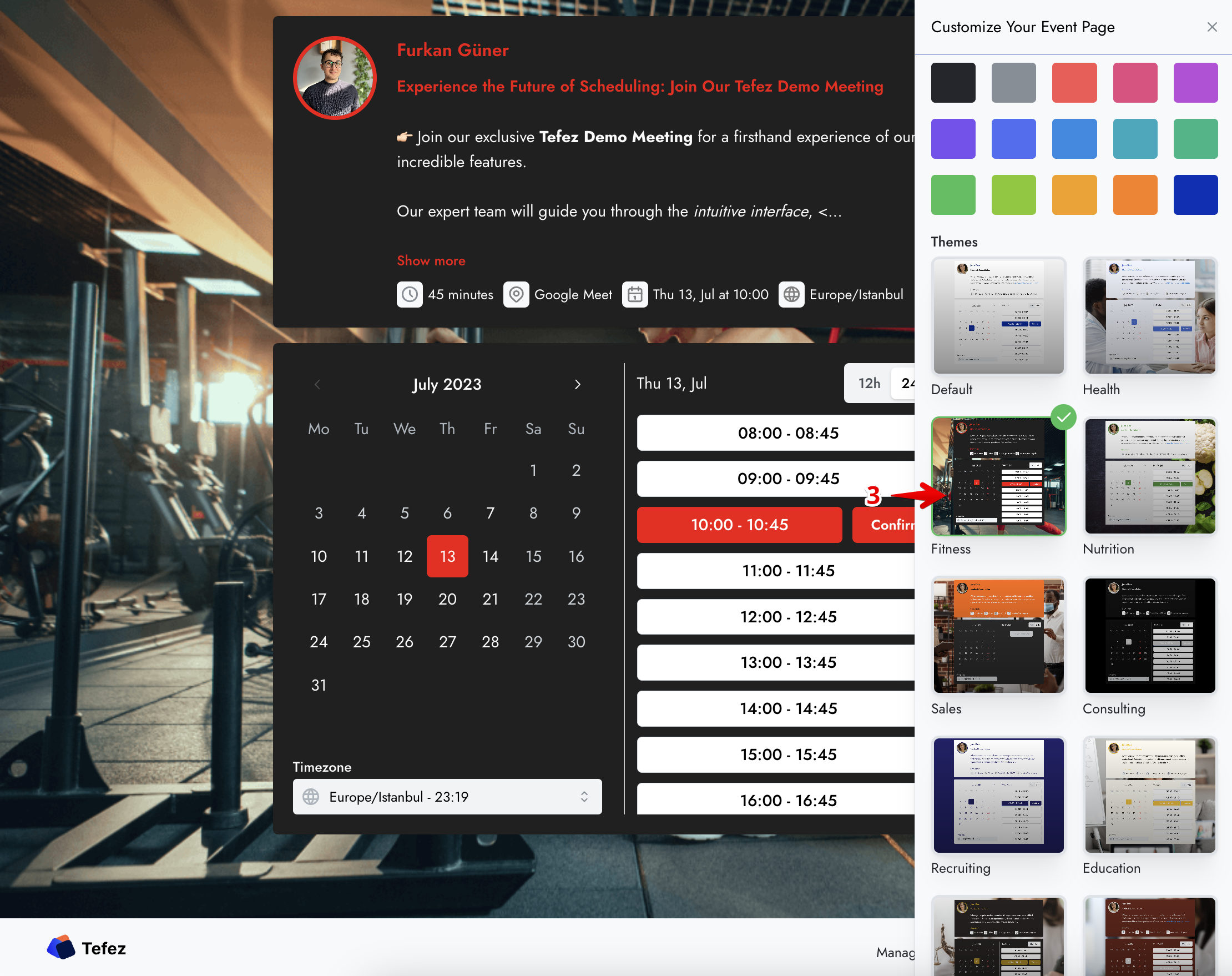
Select a theme that keeps the event readable and matches the context of the appointment. Treat the preview as the source of truth.
Apply the updated style, close the drawer, and review the page at desktop and mobile widths before sharing it.
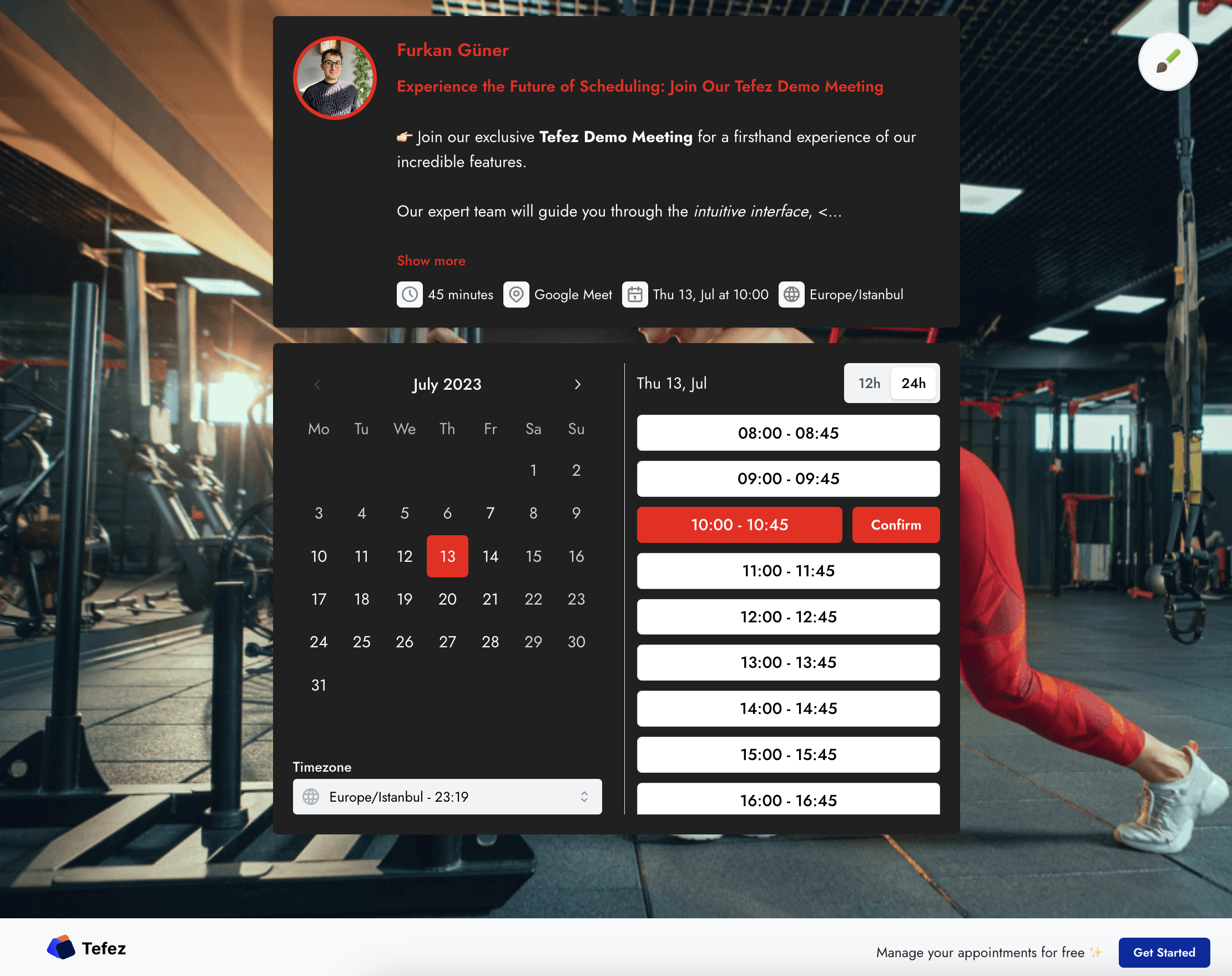
Final check
Free during early access